What is Diktatur
Diktatur (Diktat + Tastatur) is an iPhone app and keyboard for dictating Luxembourgish inside any app: messages, emails, notes or documents.
Speech recognition and transcription can run directly on the iPhone, even without an internet connection. Alternatively, to achieve the most accurate results, Diktatur can use LuxASR, the speech recognition service of the University of Luxembourg. You choose between the two when you first open the app.
A note on the word “model”, which is used often on this page: a model is the speech recognition engine that recognises your spoken words and turns them into text. Diktatur offers two options: the medium-v1 model works on the iPhone (Local), and the larger model is the online LuxASR service (Online). Whenever I mean "the type of iPhone you have", I will say “iPhone model”.
Why I made it
I developed Diktatur to make the Luxembourgish language more accessible to everyone and to offer an alternative way to enter text. The iPhone already supports dictation in many languages through iOS's built-in dictation feature, but Luxembourgish is not supported.
♿️ Diktatur may also help people with fine motor disabilities or visual impairments write in Luxembourgish more easily. The app works well with screen readers such as VoiceOver.
Join the beta test
Diktatur is in beta testing. It is tested with Apple's TestFlight before its release on the App Store. If you would like to take part, use the following TestFlight link to join the beta testing: https://testflight.apple.com/join/a61dwnck
Feedback is very welcome: see the FAQ and how to report a problem below.
How it works
- Install and open Diktatur, choose Local or Online speech recognition, and allow it to use the microphone.
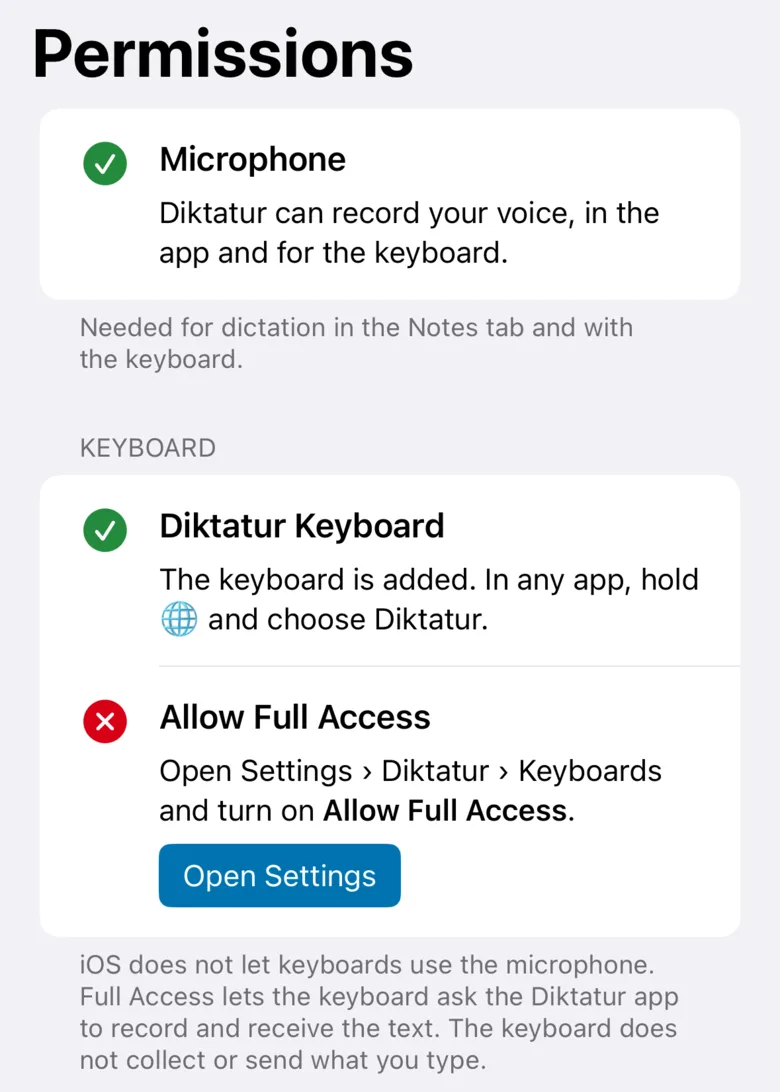
The Keyboard Help tab in the app explains the next steps. - Add the keyboard: in the iPhone's Settings › General › Keyboard › Keyboards › Add New Keyboard, choose Diktatur, then tap it and turn on Allow Full Access.
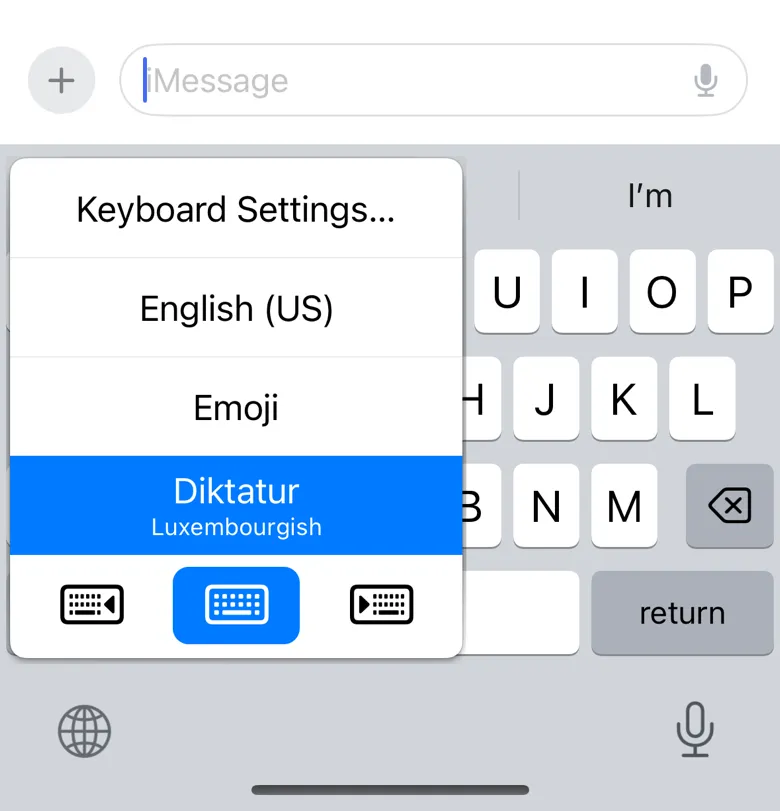
The Permissions tab in the app shows what is still missing. - Switch to the Diktatur keyboard in any app: tap a text field, hold the globe key and choose Diktatur.
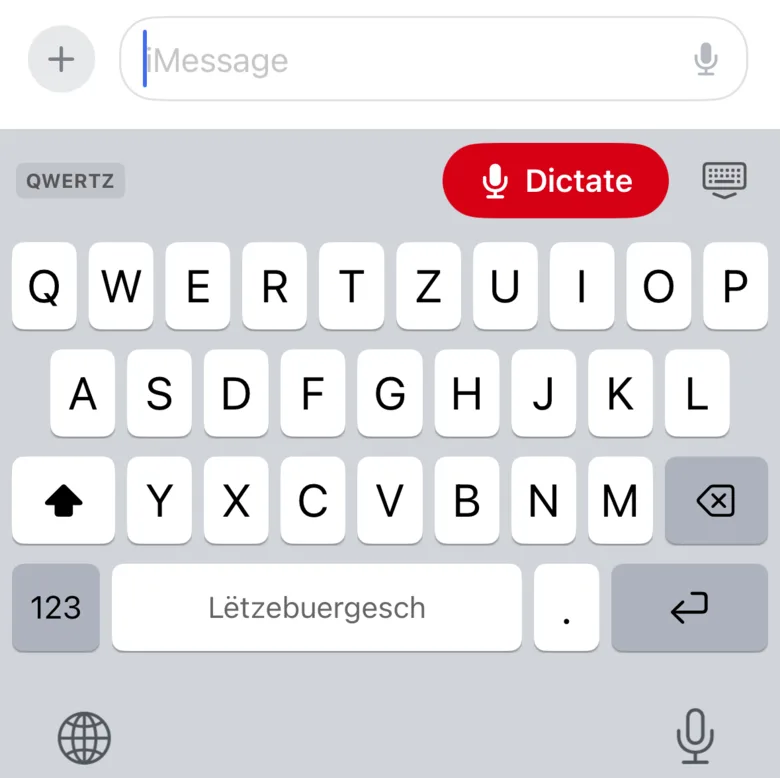
- Tap Dictate and speak. The first time, the Diktatur app opens to turn on the microphone. Just go back to your app and speak. When you are done, tap the red checkmark or simply stop talking for a few seconds. Your spoken words will be transcribed.
How the keyboard handles iOS’s microphone limit
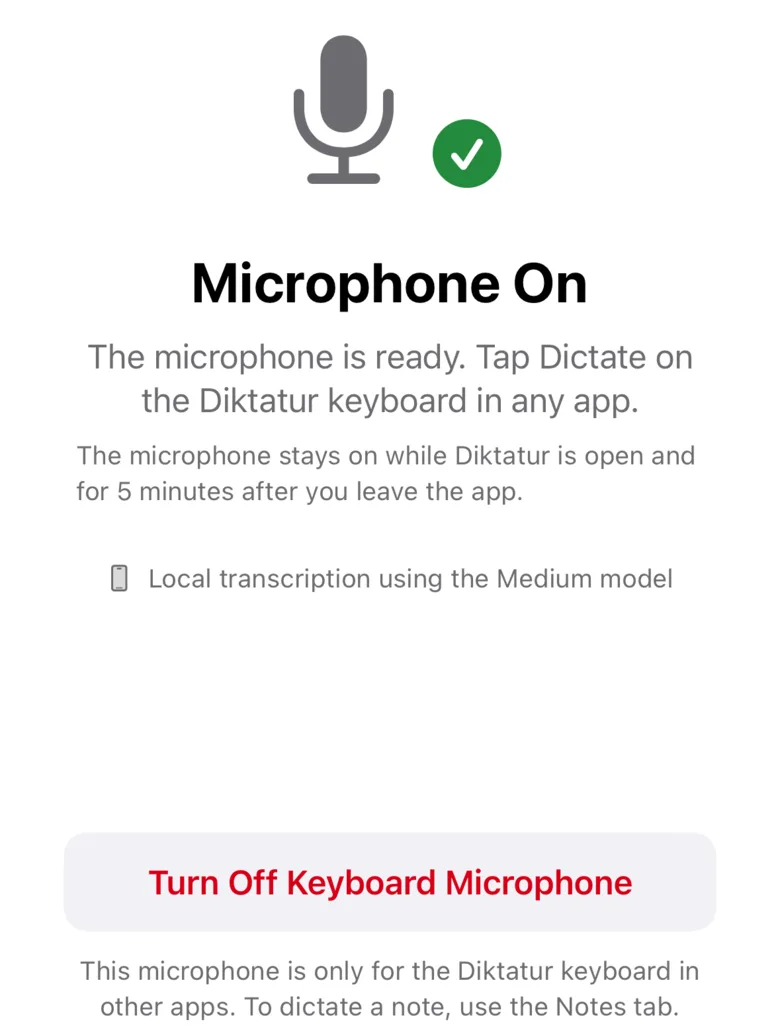
iOS does not allow keyboards to use the microphone directly. That is why the Diktatur app listens in the background. The keyboard only asks the app to start and stop, and receives the text. This workaround is almost transparent for the user, except when the keyboard sometimes forces the app to open in order to activate the microphone. This is also the reason why the keyboard requires the Full Access setting to be enabled.
The microphone stays on while Diktatur is open and for a few minutes after you leave it (5 minutes by default, adjustable in Settings › Keyboard), so you can dictate several times without the app opening again. During this period, iOS shows an orange dot in the status bar to tell you that an app is actively using the microphone. Nothing is recorded until you tap Dictate.
Dictating in the app
You can also dictate inside the app, in the Notes tab: your notes are kept there, and you can copy or share them.
Speech recognition: on your iPhone or online
When you open Diktatur for the first time, you choose how your speech is transcribed: Online (LuxASR API), which is pre-selected, or Local (LuxASR medium-v1). Nothing is recorded before you choose, and you can change it later in Settings › Speech Recognition. The local model is the open-weight Luxembourgish medium model of the LuxASR project, adapted to run on the iPhone's chip.
| Option | Accuracy | Download | Needs |
|---|---|---|---|
| Online (LuxASR API) | Best | None | An internet connection; your recordings are sent to the University of Luxembourg |
| Local (LuxASR medium-v1), on the iPhone | Good | 654 MB, once | iPhone 12 Pro, 13 Pro, 14 or newer; a short preparation after every update |
Local or Online?
Online is the most accurate and needs nothing on your iPhone, but your recordings are sent to the University of Luxembourg, and it depends on the availability of the server. Local works without an internet connection and your voice never leaves the iPhone, but it needs a recent iPhone and a 654 MB download, and it has to be prepared again after every update. On iPhones with less memory (such as the iPhone 11, 12, 13 or SE), only Online is available.
Download and prepare the local model
The local model requires two steps: Download (654 MB, once; use Wi-Fi if you can) and Prepare for this iPhone. When you choose Local, the download starts right away. Once it is done, the app tells you that it prepares the model. Preparing adapts the model to your iPhone's chip and takes about 2 minutes. Stay in Diktatur until it is done. iOS deletes the prepared model when Diktatur or iOS is updated. Therefore, the app prepares it again after every update. Sorry! But that's an iPhone limitation. Use Online to avoid this. Settings › Local Model shows both steps, and lets you delete the model.
Online: the most accurate option
When you select Online instead of Local, the app uses the larger best transcription model, located on the servers of the University of Luxembourg. It is the most accurate option and usually fast, but it depends on the availability of the server. When many people use it at the same time, or during maintenance, a transcription can take longer or even fail.
That is why, before you dictate with the keyboard, Diktatur checks whether LuxASR is available (at most once a minute, without sending any audio or text). If the server is busy, the keyboard offers to switch to Local or to continue anyway. If it can't be checked, for example without an internet connection, the keyboard tells you, at most once a day.
If you have problems with LuxASR, open luxasr.uni.lu and look at the server status indicator next to the form: green means that the server works normally, yellow that it is busy, red that it is under heavy load.
With Online, your recordings are sent to the University of Luxembourg. According to the university, the data stays in Luxembourg, the audio is deleted after processing, and nothing is used for training or shared with third parties. Diktatur uses the LuxASR API with the permission of the LuxASR team.
Typing on the keyboard
- Three layouts: QWERTZ, QWERTY and AZERTY. Tap the label in the top-left corner of the keyboard to switch.
- Hold a vowel for its accents, the most frequent in Luxembourgish first: e for é ë è ê, a for ä à â, and so on, as on Apple's keyboards.
- Hold the . key next to the space bar for the most used punctuation and the at sign: , - ' @.
- Tap the space bar twice for a full stop, and slide on the space bar to move the cursor.
Privacy
With Local, your voice is transcribed on the iPhone and never leaves it. Diktatur has no account, no advertising, no analytics and no tracking. The internet is only used to download the local model, or when you choose Online: then your recordings are sent to LuxASR, and the keyboard checks whether the service is available. Read the privacy policy for the details.
Frequently asked questions
The transcription has many mistakes. What can I do?
First, check which speech recognition you are using: the Keyboard Mic tab shows it. Online is the most accurate. If you use Local, try Online in Settings › Speech Recognition.
Speak clearly, at a normal pace, and not too far from the microphone. For names and places, add them to Settings › Vocabulary, separated by commas, for example Iechternach, Weiswampach. Only add words you actually say: listed words may replace similar-sounding ones.
Why does the Diktatur app open when I tap Dictate?
iOS does not allow keyboards to use the microphone, so the Diktatur app has to turn it on. Go back to your app with the “◀︎” link in the top-left corner and dictate. As long as the microphone stays on, the next dictations start directly from the keyboard, without opening the app.
What is Full Access for?
Without Full Access, a keyboard cannot communicate with its app. Diktatur needs it so that the keyboard can ask the app to record, and receive the text. The keyboard does not store or send what you type. Its only internet connection is the availability check with Online: it asks the LuxASR server whether it is available, without sending any audio or text. If Full Access is off, the Permissions tab tells you and opens the right place in Settings.
Why is there an orange dot at the top of the screen?
iOS shows the orange dot whenever an app has the microphone on. Diktatur keeps it on for the keyboard while the app is open and for a few minutes after you leave it, but records nothing until you tap Dictate. To turn it off right away, use the Keyboard Mic tab. You can shorten the period, or stop the microphone from turning on when you open the app, in Settings › Keyboard.
The keyboard shows “Prepare” instead of “Dictate”.
When Local is selected, the local model has to be prepared for your iPhone first. This happens after installing or updating Diktatur or iOS. Tap Prepare: Diktatur opens and prepares the model (or downloads it first, if it isn't there). Stay in the app until it is done (about 2 minutes), then go back to your app and dictate.
Preparing the model takes longer than announced.
The time shown is an estimate until your iPhone has prepared the model once. It depends on the iPhone model and on what else it is doing. If you leave the app, preparing stops and starts again later. If it takes much longer than announced, please tell me, with your iPhone model and the time it took.
I can't select Local.
The local model needs an iPhone with at least 6 GB of memory: iPhone 12 Pro, 13 Pro, 14 or newer. On other iPhones, use Online.
A keyboard dictation stopped, or the text never appeared.
When memory runs low, iOS may close Diktatur in the background, especially with Local. Tap Dictate again: if the microphone is off, the app opens and turns it on. If it happens often, please report it, with what you were doing and which app you were typing in.
Online is slow, or the keyboard says LuxASR is busy.
Before each keyboard dictation, Diktatur checks whether LuxASR is available. When the server is busy, the keyboard offers to switch to Local or to continue anyway. When it can't be checked, it tells you once a day; check your internet connection. You can also look at the server status indicator on luxasr.uni.lu: yellow or red means that the server is busy. In the app, a recording that failed is not lost: you can retry it or discard it. Meanwhile, you can switch to Local in Settings › Speech Recognition.
Does it work without an internet connection?
Yes, with Local, once the model is downloaded and prepared. Online needs an internet connection.
Can I dictate in other languages?
With Local, only Luxembourgish is recognised. With Online, you can choose between Luxembourgish and German in Settings. The app itself is available in Luxembourgish, German, French and English (Settings › App Language).
The recording stops by itself.
After you have spoken, Diktatur finishes automatically after a short silence, 3 seconds by default. A ring around the checkmark shows the countdown; tap it to cancel. You can change the silence threshold and the duration, or turn it off, in Settings › Auto-Finish on Silence.
Can I use Diktatur on an iPad or a Mac?
No, Diktatur is made for the iPhone only.
Report a problem or give feedback
The easiest way, for beta testers, is the TestFlight app: take a screenshot in Diktatur and tap Share Beta Feedback, or open TestFlight › Diktatur › Send Beta Feedback. You can also send me an email or leave a comment below.
A problem is much easier to fix when I know exactly what you were doing. Please copy this template and fill it in:
iPhone model and iOS version:
Diktatur build (shown at the bottom of Settings):
Speech recognition: Local / Online
Where: in the Diktatur app (Notes) or with the keyboard in which app?
What I did, step by step:
What I expected:
What happened instead (copy any error message):
How often: always / sometimes / once
For wrong words: what I said, and what Diktatur wrote:
For problems with Local, test versions also have Settings › Diagnostics: it lists the loading and transcription times of the last dictations. Tap Copy and paste the list into your message. It contains neither audio nor text.
Credits
- The speech recognition models are developed by the LuxASR team at the University of Luxembourg (Peter Gilles, Léopold Hillah and Nina Hosseini-Kivanani), supported by the Chambre des Députés. The open-weight models are © University of Luxembourg, under the OpenMDW License 1.0.
- The local model runs on the iPhone with WhisperKit by Argmax.
Comments
0 comments
No comments yet. Be the first to comment!